Install the soritrading agent on Amazon Lightsail
Create an Ubuntu server on AWS Lightsail, then paste the one-line install command copied from soritrading into the SSH terminal. Even if this is your first server, just follow the steps below.
Choose the server location and OS
Select the server region and the Ubuntu operating system.
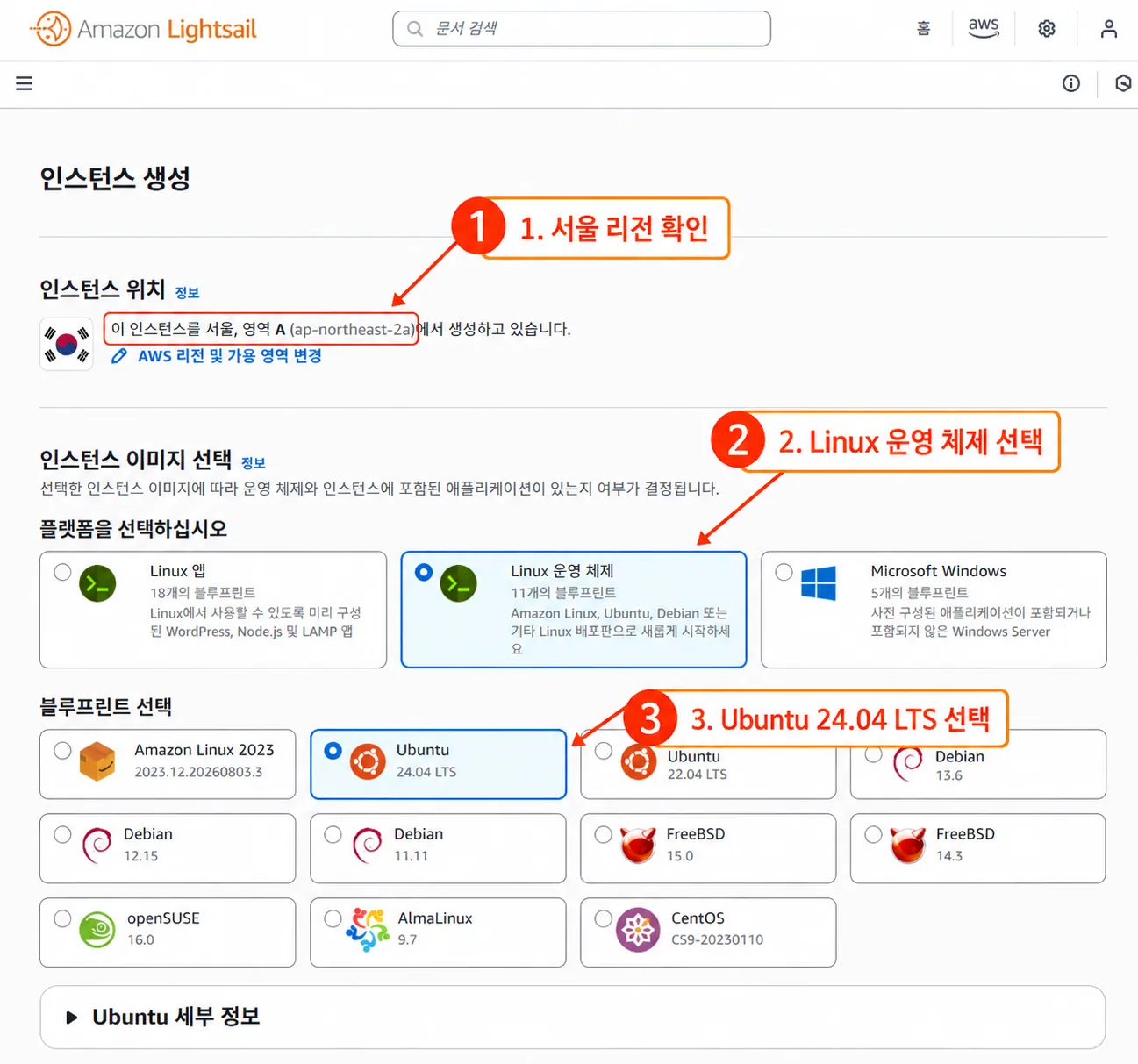
Pick the region closest to the exchange you trade on most — Seoul for Upbit, Japan (Tokyo) for Binance. For other exchanges, ask the exchange where their servers are and choose a nearby region. Order round-trip time is execution quality.
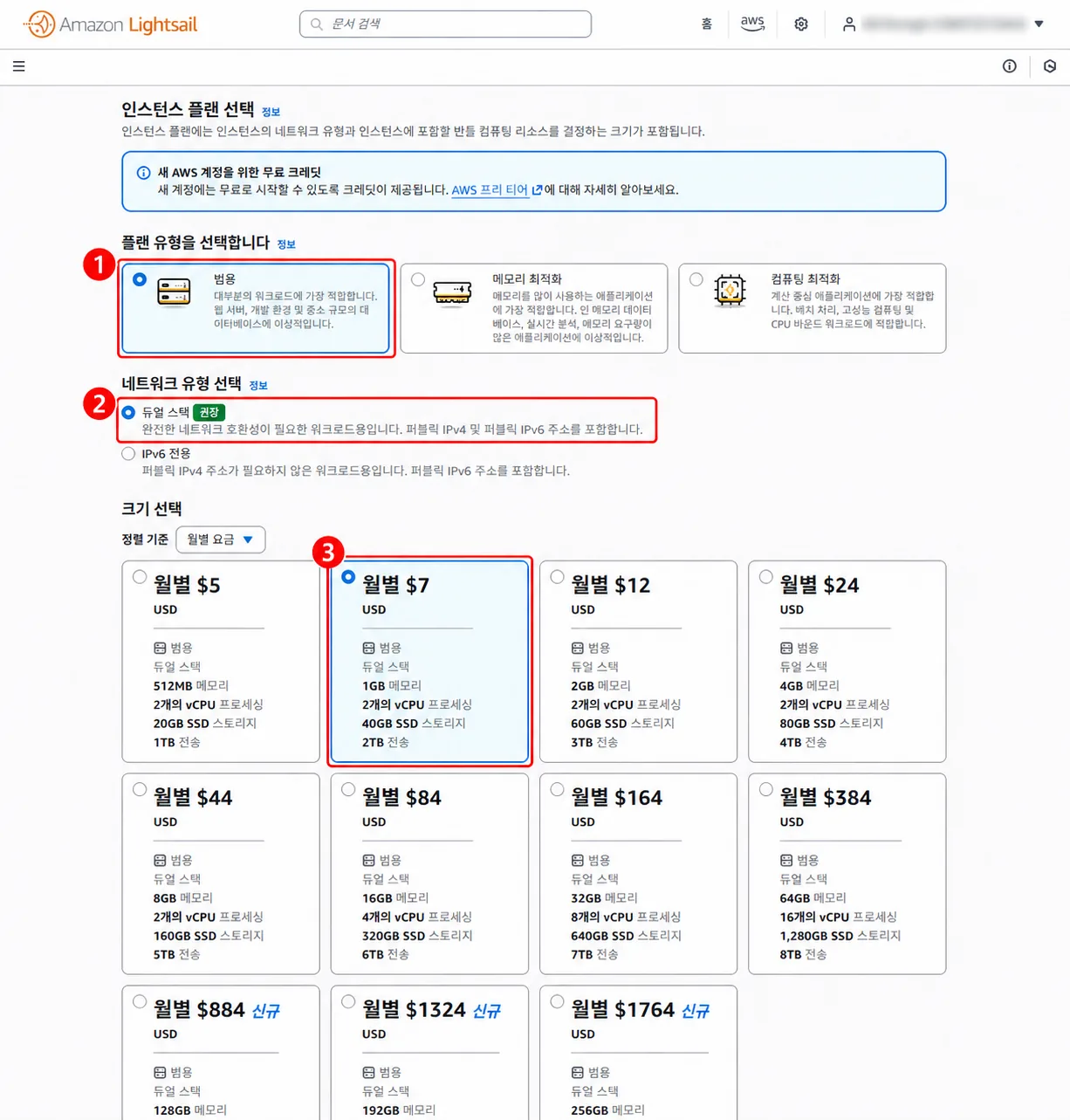
Choose an instance plan
If this is your first time, the settings below are the simplest way to start.
Name the instance and create it
Give the server an easy-to-recognize name, then create the instance.
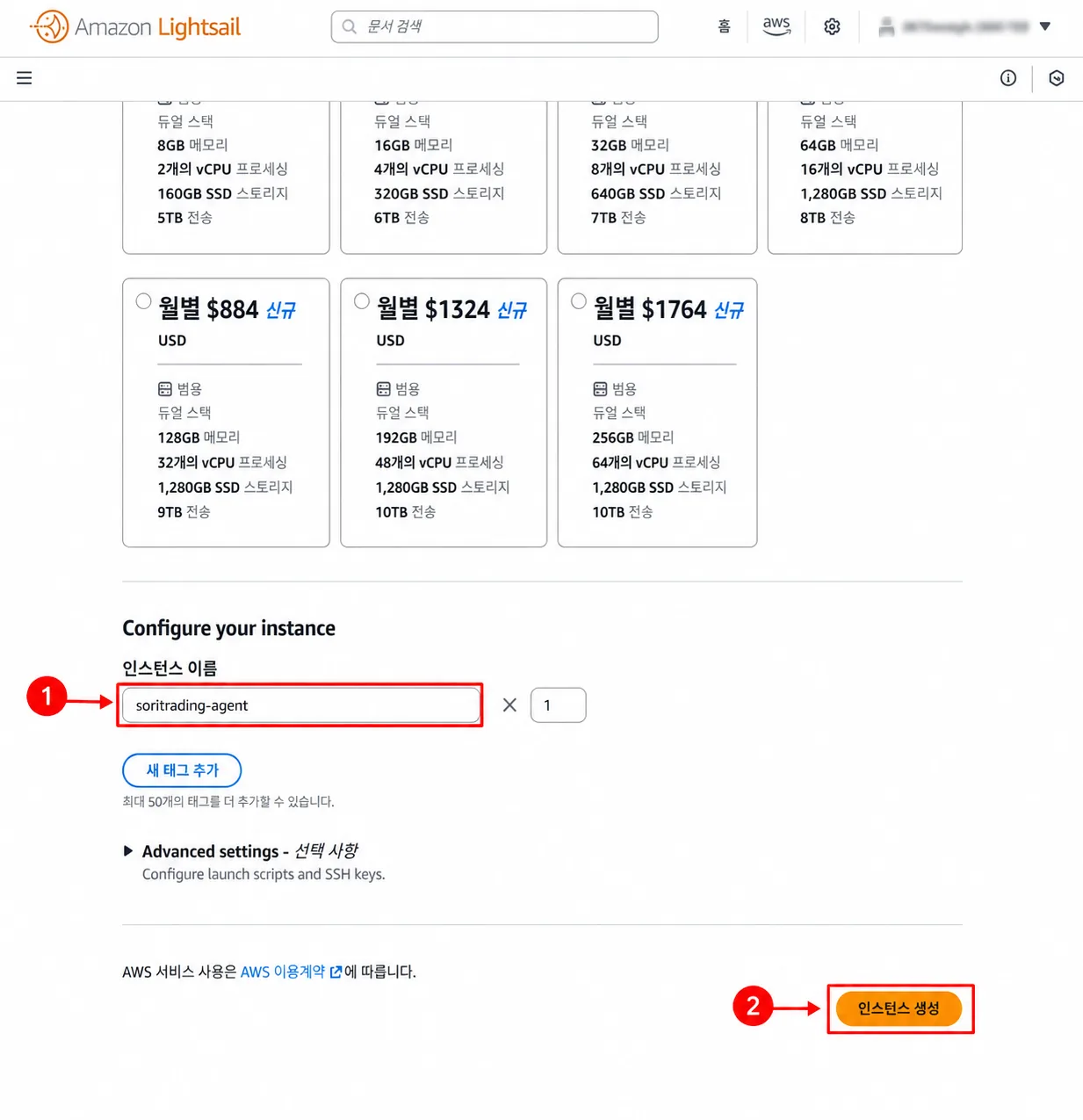
You can leave automatic snapshots, tags, and Advanced settings unchanged for now.
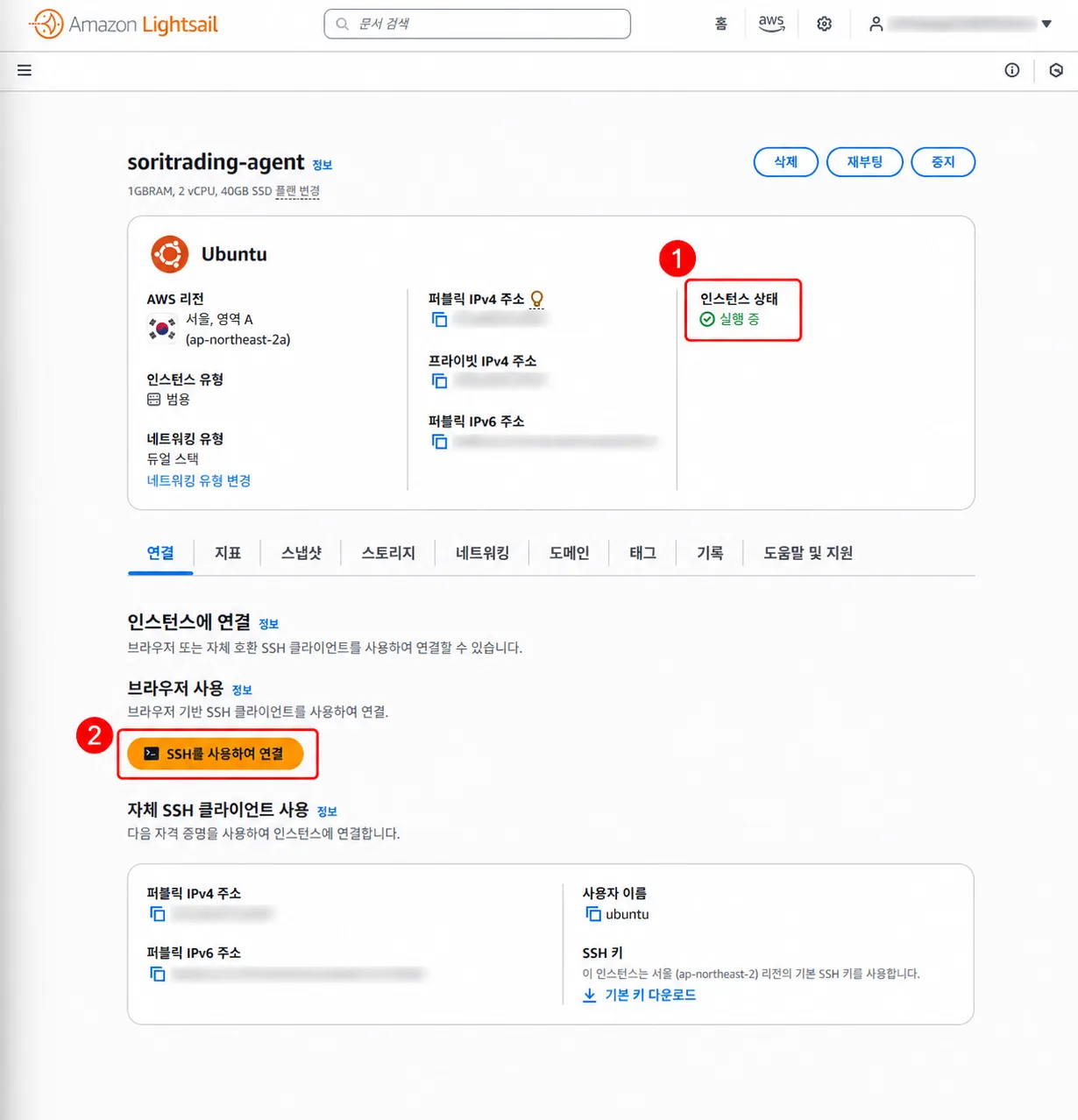
Confirm the server is running and connect via SSH
Once the instance is created, check that its status is Running, then open the browser SSH.
Paste the soritrading install command
Paste the install command copied from your soritrading agent management screen into the SSH terminal and run it.
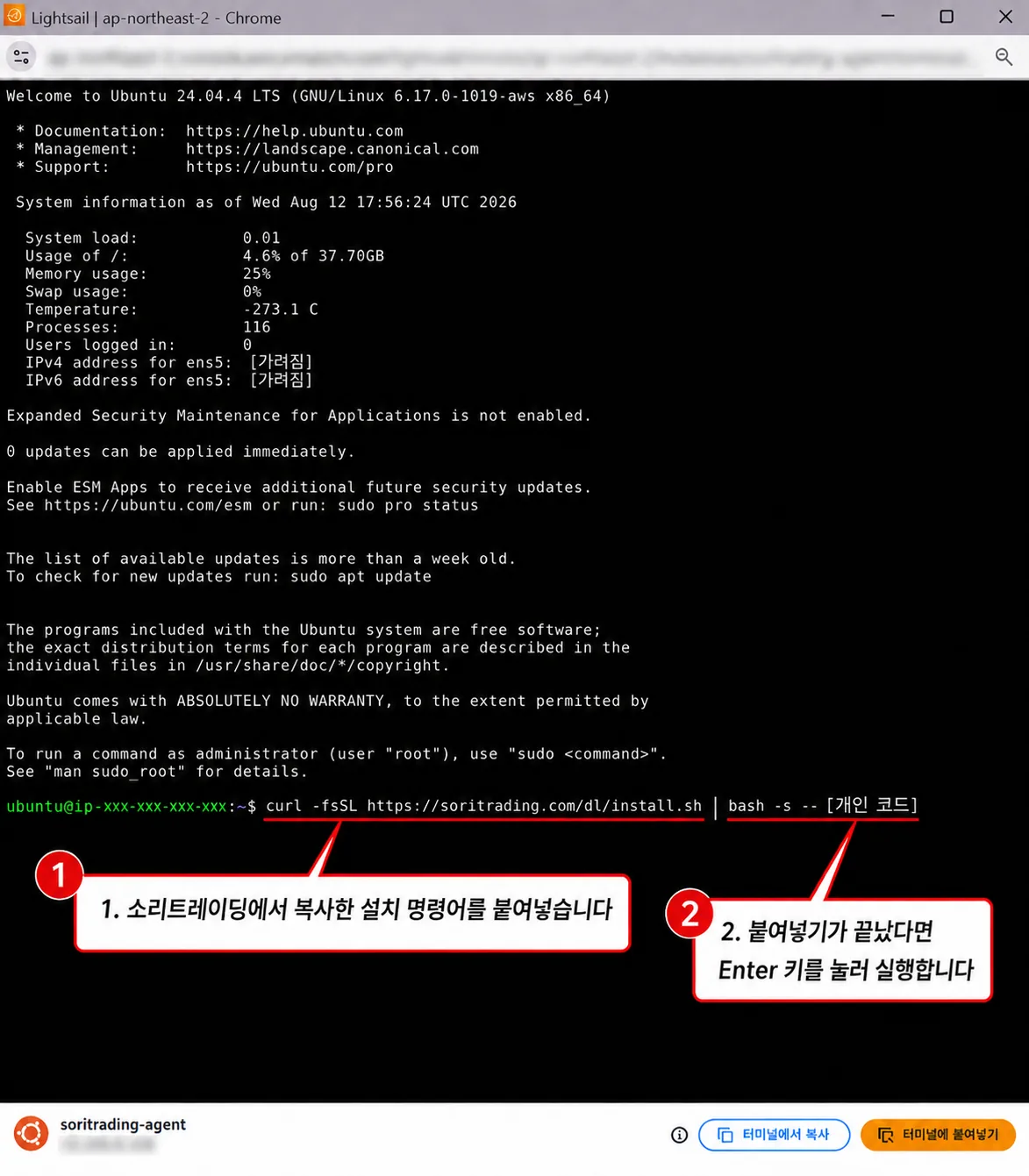
The install command is different for every user — always copy it from your own soritrading agent management screen.
When the install finishes, return to the soritrading agent management screen and check that the agent status shows Online. Once it is online, your Lightsail server and the soritrading agent are connected. You can close the browser SSH window.
Screens may differ slightly as AWS and soritrading are updated. Text in the screenshots follows your AWS console language setting.